Ploi can take over a server that RunCloud provisioned. It connects over SSH, installs its own stack next to RunCloud's and moves your web apps onto it. You keep the server, the IP address and your files. RunCloud runs its own NGINX, Apache and PHP builds under /RunCloud/Packages, with apps under /home/<user>/webapps, so the import replaces that stack rather than only registering it. Your apps go offline only for the short moment Ploi switches serving over to its own NGINX, about a minute. The import is in beta, so make a snapshot at your provider before your first one.
Before you start
You need root access over SSH.
The server runs Ubuntu 22.04, 24.04 or 26.04, or Debian 12 or 13, and is not managed by Ploi yet.
The server uses RunCloud's NGINX or NGINX + Apache2 Hybrid web stack. OpenLiteSpeed servers cannot be imported, the scan will refuse them.
Each app you want to import needs a real domain, not just the server IP.
Leave the server connected in RunCloud until the import is done. Disconnecting is an optional last step.
Step by step
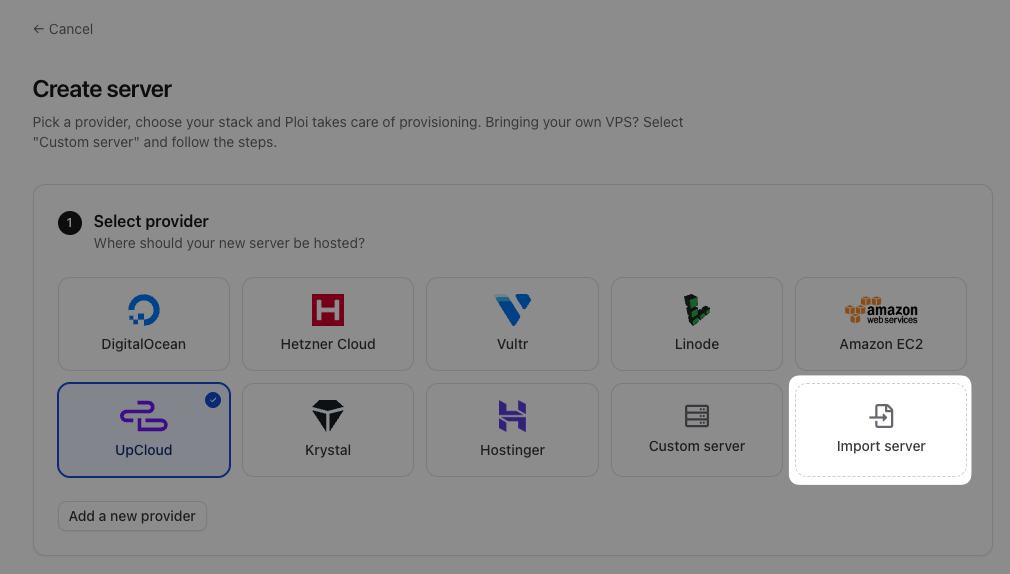
In Ploi, open Servers, click Create server and pick Import server.
Choose RunCloud and fill in a name, the IP address and the SSH port.
Run the command Ploi shows you as root on the server. It only adds Ploi's SSH key to
/root/.ssh/authorized_keys.Click Verify connection & scan. The scan is read-only and takes under a minute.
Review the apps and databases that were found, tick the sites you want and choose whether to disconnect from RunCloud at the end.
Start the import and follow the progress on the building page.
What Ploi changes
Because RunCloud uses its own stack, the import installs Ploi's native stack and moves your apps onto it. Everything that can be installed while RunCloud keeps serving is done first, then Ploi switches serving over in one short step.
Ploi adds a ploi user and installs its own NGINX, a PHP-FPM build for each version your apps use, certbot, supervisor and its base cronjobs.
Each app moves from
/home/<user>/webapps/<app>to Ploi's/home/<user>/<domain>layout and keeps its PHP version and web directory. Its RunCloud system user becomes a Ploi system user, with the SSH key it already has.Ploi generates an NGINX vhost and a PHP-FPM pool for each site from its own template, checks the configuration with
nginx -t, then stops RunCloud's NGINX, Apache and PHP-FPM and reloads its own NGINX so the sites serve through Ploi.Databases and database users are registered. MySQL only stores password hashes, so use reset password in Ploi when you need one and update the application's configuration.
The cron jobs RunCloud scheduled are taken over and shown in the panel, with their app paths rewritten to the new location so they keep working.
RunCloud's own services are stopped, not removed, so the move can be reversed.
A note on .htaccess
On the NGINX + Apache stack RunCloud serves apps through NGINX in front of Apache, which reads .htaccess files. Ploi is NGINX only. Laravel and WordPress work through the NGINX rules Ploi generates, but if an app relies on custom .htaccess rules you will need to translate those into the site's NGINX configuration in Ploi afterwards. Apps on RunCloud's Native NGINX stack are not affected.
Certificates
RunCloud's Let's Encrypt certificates are registered so Ploi can warn you before they expire, but RunCloud stops renewing them once the server leaves it. Request a new Let's Encrypt certificate from the site's SSL tab in Ploi, and Ploi renews it from then on. A site without a certificate serves over plain HTTP until you issue one.
Deployments
RunCloud keeps deployment settings in its own panel, so there is nothing on the server to take over. Each imported site receives Ploi's default deploy script. Set up the repository and deploy steps per site in Ploi, and enable zero downtime deployments if you want them.
Disconnecting from RunCloud
With the disconnect option on, the last step stops and disables RunCloud's agent so it no longer manages the server. Its packages stay installed so the move can be reversed. Remove the server from your RunCloud dashboard to finish disconnecting. With the option off, RunCloud keeps managing the server until you do. Cancel your RunCloud subscription only after the import has finished and you have verified the sites.
If something goes wrong
Every step writes to the server logs. If a site's NGINX configuration does not pass nginx -t, or a PHP-FPM socket is missing, the import stops and the server shows as failed, so nothing is left half-switched. You can retry the import from the server, and every step skips what an earlier run already did. Send us the server ID through support if you need a hand.